Support
Help and answers
A support address will be listed here soon.
Installing
First launch: one extra click, once
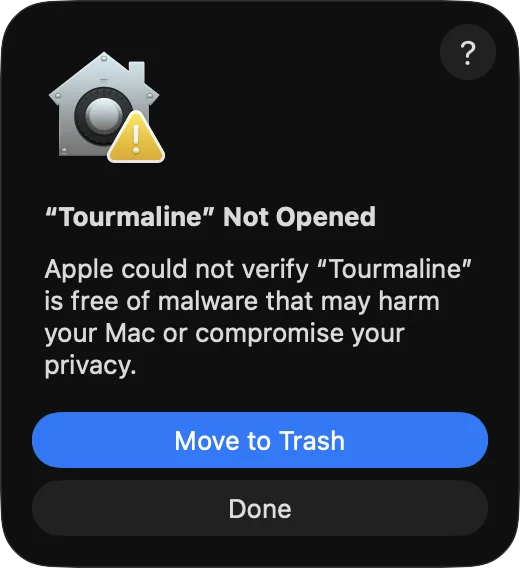
Tourmaline isn't notarized by Apple yet (that needs a paid Apple Developer membership, which is on its way), so macOS asks you to confirm the first time you open it. After that it opens like any other app, and its updates are signed and checked by the app before they install.
- Open the downloaded disk image and drag Tourmaline to Applications.
- Open Tourmaline. macOS says it could not verify it: click Done.
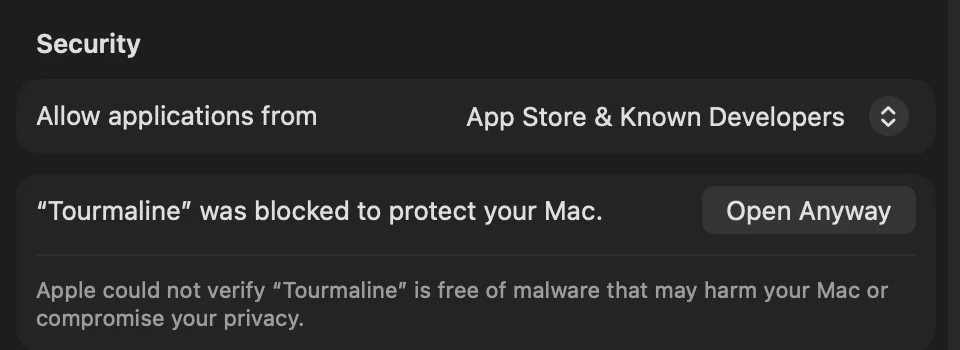
- Open System Settings → Privacy & Security, scroll down to Security and click Open Anyway next to “Tourmaline” was blocked. Choose Open Anyway again in the dialog that follows, and confirm with your password or Touch ID. The button shows for about an hour after you tried to open the app; if it's gone, open Tourmaline again first.
Frequently asked questions
macOS says it “could not verify” Tourmaline. Is it safe?
That message appears for every app that isn't notarized by Apple yet, and Tourmaline isn't, until its Apple Developer membership is in place. The steps above open it; you only do it once. Updates after that are signed, and the app checks the signature before installing them.
Which Macs does it run on?
Macs with Apple silicon running macOS 15 Sequoia or later.
Which mail accounts work?
Any account with IMAP and SMTP: iCloud, Fastmail, Yahoo, your own domain and most providers. Type your address and Tourmaline looks up the settings; you can also enter them by hand.
How do I add Gmail or Outlook?
For Gmail, the simplest way today is an app password: turn on 2-Step Verification in your Google Account, create an app password, and use it in Tourmaline instead of your normal password.
Sign-in with Google or Microsoft (OAuth) is available with an OAuth client ID you create in Google Cloud or Microsoft Entra and paste in Settings → OAuth. Outlook.com and Microsoft 365 need this, since Microsoft no longer accepts passwords for mail apps. A built-in Google client, with no setup, is on its way. Sign-in through OAuth hasn't yet been tested with real accounts, and neither have Gmail's labels and archiving or Outlook's limits on instant new mail: if something behaves oddly, that's useful to hear about.
Can you read my mail?
No. Tourmaline connects your Mac straight to your mail servers. There's no Tourmaline account or server in between, and no telemetry. Privacy policy.
Is there an iPhone or iPad app? Does it sync with iCloud?
Not yet. The iPhone and iPad app is in development, and iCloud sync of snoozes, pins, scheduled sends and settings is built but needs a signed build to turn on. Your mail itself always syncs through your mail server, as with any IMAP app.
How do updates work? Can I go back to an older version?
Tourmaline checks once a day and asks before installing (Settings → Updates; Tourmaline → Check for Updates… to look now). Every release from 0.3.24 on stays available: to go back, download it from https://updates.tourmaline.email/Tourmaline-X.Y.Z.dmg (the version from the changelog), replace the app in Applications and open it. If it says your mail was updated by a newer version, choose Restore from Backup.
Something's wrong. What should I send?
Help → Copy Diagnostics puts the versions, the last launch's health and the recent log on the clipboard, ready to paste. Accounts appear by number, never by address, and nothing is sent anywhere unless you paste it.
How do I remove Tourmaline completely?
First turn off Spotlight in Settings → Reading, which clears its index, and remove your accounts in Settings → Accounts: that deletes their downloaded mail and Keychain items, and for Google sign-in also asks Google to revoke Tourmaline's access. Then drag the app to the Trash, and delete what's left: ~/Library/Application Support/Tourmaline, ~/Library/Preferences/com.tourmaline.app.plist, ~/Library/Caches/com.tourmaline.app, ~/Library/HTTPStorages/com.tourmaline.app (and the .binarycookies file beside it) and ~/Library/WebKit/com.tourmaline.app. If you used masked addresses or OpenPGP or S/MIME keys, search Keychain Access for “tourmaline” and delete what's left there, and remove the folders whose names start with com.tourmaline.app in ~/Library/Containers and ~/Library/Application Scripts.